

Overview
This guide presents three key solutions for vehicle audio streaming problems: resetting the infotainment system, updating vehicle firmware, and addressing connection issues through cable/port inspection and Bluetooth troubleshooting. Regular preventative maintenance including system updates and connection refreshes can prevent most streaming problems, while professional help should be sought for persistent issues or error codes.
Table of Contents
- Understanding Audio Streaming Protocol
- Common Audio Streaming Issues in Modern Vehicles
- Fix 1: Resetting Your Infotainment System
- Fix 2: Updating Your Vehicle’s Firmware
- Fix 3: Checking and Correcting Connection Issues
- Preventative Maintenance for Audio Streaming Systems
- When to Seek Professional Help
- Conclusion
- Frequently Asked Questions
Understanding Audio Streaming Protocol
Audio streaming protocol is the technical language that enables your smartphone to communicate with your car’s infotainment system, allowing you to enjoy your favorite tunes, podcasts, or audiobooks while driving. As a mechanic with over 15 years of experience working with modern vehicle systems, I’ve seen countless frustrated drivers struggling with audio streaming issues. Whether you’re dealing with Bluetooth disconnections, app compatibility problems, or poor sound quality, these hiccups can turn an enjoyable drive into a frustrating experience.
At its core, an audio streaming protocol is a set of rules that governs how audio data is transmitted between devices. Your car might use protocols like Bluetooth A2DP (Advanced Audio Distribution Profile), Apple CarPlay, Android Auto, or manufacturer-specific systems. Each has its own quirks and potential failure points. The good news? Most audio streaming issues can be resolved without an expensive trip to the dealership.
In this comprehensive guide, I’ll walk you through three proven fixes for common audio streaming protocol issues. I’ve helped hundreds of drivers get their tunes flowing smoothly again, and with a bit of patience, you’ll be back to enjoying crystal-clear audio on your commute. Let’s dive under the hood of these systems and get your car’s audio streaming working properly again.
Common Audio Streaming Issues in Modern Vehicles
Before we jump into solutions, let’s identify what might be causing your audio streaming woes. Understanding the problem is half the battle when it comes to fixing technical issues. Modern vehicles pack impressive technology, but that complexity means more potential points of failure.
The most common complaints I hear from drivers about audio streaming protocol issues include:
- Intermittent Bluetooth connections that drop without warning
- Pairing problems between smartphones and the vehicle system
- Audio quality issues like distortion, static, or volume fluctuations
- Apps that freeze or crash when streaming through the car’s system
- Delays between phone controls and the audio response
Many of these issues stem from outdated software, incompatible protocols, interference from other devices, or simple connectivity problems. According to J.D. Power’s Initial Quality Study, infotainment systems consistently rank among the top complaints for new vehicle owners.
What makes audio streaming protocol issues particularly frustrating is their inconsistency. Sometimes your system works flawlessly, then suddenly fails the next day with no apparent explanation. These intermittent problems can be challenging to diagnose, but don’t worry—the fixes we’re about to explore address the root causes of most streaming audio headaches.
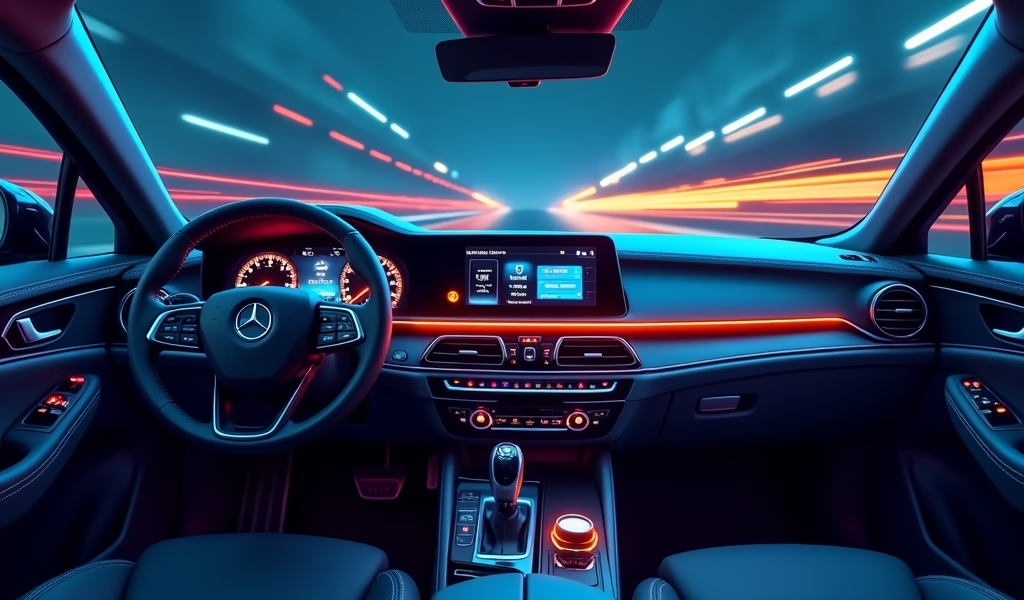
Fix 1: Resetting Your Infotainment System
When troubleshooting audio streaming protocol issues, I always start with the simplest solution: resetting the infotainment system. Think of this as the automotive equivalent of restarting your computer when it’s acting up. This basic step resolves a surprising number of problems by clearing temporary glitches in the system’s memory.
Here’s how to perform a proper infotainment system reset:
Soft Reset Procedure
A soft reset is non-invasive and won’t delete your saved settings:
- Turn off your vehicle completely
- Open and close the driver’s door
- Wait approximately 2-3 minutes (this allows the system to fully power down)
- Start your vehicle again and test the audio streaming
For many vehicles, you can also perform a soft reset directly through the infotainment system by holding down the power/volume button for 10-15 seconds until the screen goes blank and restarts.
Hard Reset Procedure
If a soft reset doesn’t solve your audio streaming protocol issues, a hard reset might be necessary. Be aware that this will typically erase saved settings like paired phones and preset radio stations:
- Locate your vehicle’s settings or system configuration menu
- Look for options like “Factory Reset,” “Master Reset,” or “Restore Default Settings”
- Follow the prompts to complete the reset process
- Reconnect your phone and test the audio streaming capabilities
I recently helped a customer with a 2020 Honda Accord who couldn’t maintain a stable Bluetooth connection. After trying numerous fixes, a hard reset of the infotainment system immediately resolved the problem. The system had simply developed a software “hiccup” that was preventing proper communication with the audio streaming protocol.
Remember to document your preferred settings before performing a hard reset so you can quickly reconfigure the system afterward. This small step can save you significant frustration later.
Fix 2: Updating Your Vehicle’s Firmware
Outdated firmware is one of the most common culprits behind audio streaming protocol issues. Vehicle manufacturers regularly release firmware updates that improve compatibility, fix bugs, and enhance performance. Think of firmware as your car’s operating system—it needs regular updates just like your smartphone or computer.
Updating your vehicle’s firmware can resolve numerous streaming issues, including connection problems, app compatibility glitches, and audio quality concerns. I’ve seen cases where a simple update transformed a nearly unusable infotainment system into one that performs flawlessly.
How to Check for and Install Firmware Updates
There are typically three ways to update your vehicle’s firmware:
- Over-the-air updates (for newer vehicles with built-in connectivity)
- Dealer-performed updates during service visits
- DIY updates using a USB drive or SD card
For over-the-air updates, check your vehicle’s settings menu for an “Update” or “System Update” option. If available, follow the prompts to check for and install updates. This process is similar to updating your smartphone and typically takes 20-30 minutes. Never turn off your vehicle during the update process.
If your vehicle requires dealer updates, contact your local service department to inquire about firmware updates for your specific model and year. Many dealerships will perform these updates free of charge, especially if the update addresses known issues.
For DIY updates:
- Visit your vehicle manufacturer’s website and navigate to the support or downloads section
- Enter your vehicle information to locate available updates
- Download the update to a compatible USB drive (follow manufacturer guidelines for formatting)
- Insert the USB drive into your vehicle’s USB port
- Follow the on-screen prompts to complete the update
A recent Consumer Reports survey found that 62% of drivers who experienced infotainment system problems were able to resolve their issues with a firmware update. This makes updating your firmware one of the most effective solutions for audio streaming protocol problems.

Fix 3: Checking and Correcting Connection Issues
Sometimes, audio streaming protocol problems have nothing to do with software and everything to do with good old-fashioned connection issues. Physical connections, interference, and device compatibility can all impact your streaming experience. Let’s look at how to identify and resolve these connection-related problems.
USB Connections
If you’re using Apple CarPlay, Android Auto, or a direct USB connection for audio streaming, check these elements:
- Inspect your USB cable for damage or wear – even minor fraying can cause intermittent connections
- Try a different USB port in your vehicle (if available)
- Use the manufacturer-recommended cable or a high-quality alternative
- Clean the USB port gently with compressed air to remove dust or debris
In my workshop, I keep a collection of brand-new, high-quality USB cables specifically for diagnosing connection issues. You’d be amazed how often a simple cable replacement solves seemingly complex audio streaming problems.
Bluetooth Connectivity
For Bluetooth streaming issues, try these solutions:
- Remove your device from the car’s paired devices list, then re-pair it from scratch
- Update your smartphone’s operating system and apps
- Check your phone’s Bluetooth settings to ensure it’s set to visible/discoverable
- Disable power-saving features that might be cutting Bluetooth connections
- Reduce potential interference by removing other Bluetooth devices from the vehicle
I recently worked with a customer who was experiencing frequent Bluetooth disconnections in his Subaru Outback. After trying various fixes, we discovered that his smartwatch was causing interference with the car’s Bluetooth system. Removing the watch from the Bluetooth paired devices immediately resolved the issue.
Interference and Signal Strength
Modern vehicles are filled with electronics that can potentially interfere with wireless audio streaming protocols. Consider these factors:
- Keep your phone in a location with good signal strength (avoid placing it under seats or in compartments that might block signals)
- Remove unnecessary electronic devices that might cause interference
- Check if your phone case is blocking signals (particularly metal cases)
- In some vehicles, using a phone mount positioned near the infotainment system can improve connectivity
By methodically checking these connection points, you can identify and resolve many common audio streaming protocol issues without specialized tools or expertise.
Preventative Maintenance for Audio Streaming Systems
An ounce of prevention is worth a pound of cure—especially when it comes to your car’s audio streaming capabilities. Implementing a few simple habits can help you avoid future streaming protocol issues and ensure consistent performance.
Here’s my preventative maintenance checklist for audio streaming systems:
- Regularly check for system updates (set a reminder every 3-4 months)
- Keep your smartphone’s operating system and apps updated
- Periodically “forget” and re-pair Bluetooth devices to refresh connections
- Replace cables before they show signs of significant wear
- Clean USB ports and connections gently with compressed air
- Limit the number of paired devices to only those you actively use
One particularly effective strategy I recommend to my customers is performing a soft reset of the infotainment system monthly, even if you’re not experiencing problems. This helps clear any accumulated temporary files or minor glitches before they develop into noticeable issues.
Remember that extreme temperatures can affect electronic systems. If you live in a very hot or cold climate, consider using a sunshade or garage parking to protect your vehicle’s electronics from temperature extremes. According to NHTSA research, electronic systems are more prone to failure when repeatedly exposed to temperature extremes.
When to Seek Professional Help
While the three fixes we’ve covered will resolve the majority of audio streaming protocol issues, some problems require professional attention. As someone who’s been elbow-deep in automotive electronics for years, I can tell you that knowing when to call for backup is just as important as knowing how to DIY.
Consider seeking professional help if:
- You’ve tried all three fixes without success
- Your system displays error codes or warning messages
- The infotainment system reboots repeatedly or freezes completely
- You notice other electrical issues in your vehicle (these may be related)
- A firmware update failed or interrupted midway through the process
When seeking professional assistance, start with your dealer’s service department, as they’ll have the most experience with your specific vehicle’s systems. Before your appointment, document exactly what issues you’re experiencing and what troubleshooting steps you’ve already taken. This information can significantly speed up the diagnostic process.
Ask if there are any known issues or technical service bulletins (TSBs) related to audio streaming for your vehicle model. Manufacturers often issue these bulletins to dealers when they identify common problems, and the repair might even be covered under warranty in some cases.
Remember that a qualified technician has access to specialized diagnostic equipment that can identify issues in your vehicle’s communication networks that aren’t visible to the naked eye.
Conclusion
Audio streaming protocol issues can be frustrating, but as we’ve explored, most can be resolved with three straightforward fixes: resetting your infotainment system, updating firmware, and addressing connection problems. These solutions have helped countless drivers restore their in-car entertainment without expensive repairs or dealer visits.
Remember that modern vehicles are essentially computers on wheels, and like any technology, they sometimes need a restart or refresh to function properly. Approaching audio streaming issues with patience and methodical troubleshooting will almost always lead to a solution.
By implementing the preventative maintenance tips outlined in this guide, you can minimize future audio streaming protocol problems and enjoy uninterrupted entertainment during your drives. And when all else fails, knowing when to seek professional help can save you time and frustration.
The next time your favorite podcast cuts out or your music streaming app refuses to connect, don’t despair—revisit this guide, follow the steps, and you’ll likely be back to enjoying your audio in no time. Safe travels and happy listening!
Frequently Asked Questions
What exactly is an audio streaming protocol?
An audio streaming protocol is a set of rules that governs how audio data is transmitted from your mobile device to your car’s infotainment system. Common examples include Bluetooth A2DP, Apple CarPlay, and Android Auto.
Why does my Bluetooth audio keep disconnecting while driving?
Bluetooth disconnections are typically caused by interference, outdated firmware, or power-saving settings on your phone. Try updating your system, re-pairing devices, and checking for interference from other electronics.
Can a phone case interfere with audio streaming to my car?
Yes, especially cases with metal components or extreme thickness. These can block or weaken the Bluetooth signal between your phone and the car’s infotainment system.
How often should I update my car’s infotainment system?
Check for updates every 3-4 months or whenever you experience audio streaming issues. Many manufacturers release updates quarterly to improve performance and compatibility.
Will a factory reset delete all my saved settings?
Yes, a factory reset (hard reset) will typically erase all saved settings including paired phones, preset stations, and saved locations. Document your important settings before performing a hard reset.