
Overview
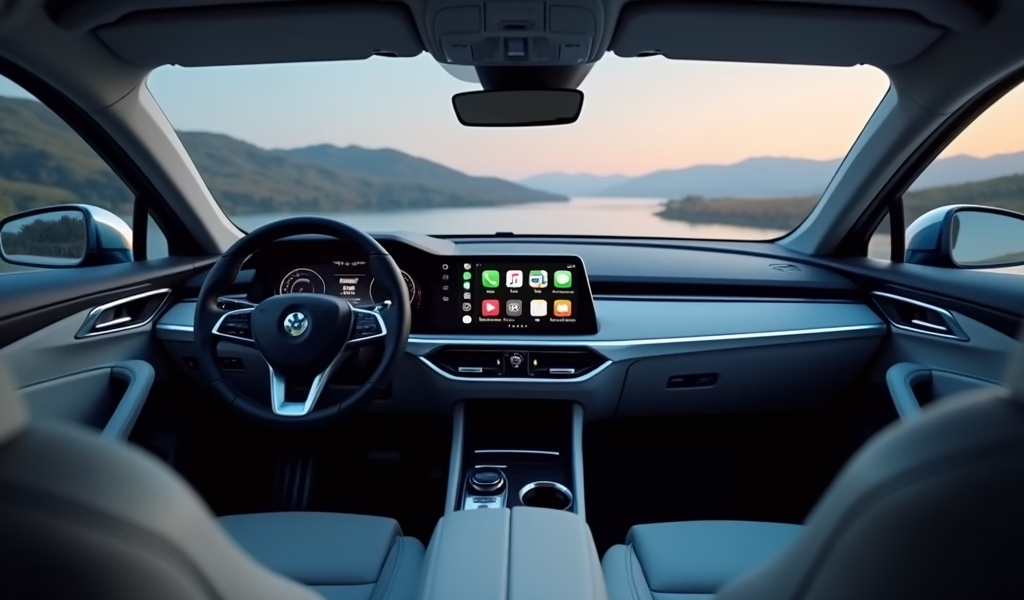
This article explains how to maximize Apple CarPlay’s functionality through five pro tips: mastering voice commands, optimizing apps, troubleshooting connection issues, customizing display settings, and utilizing advanced features like Do Not Disturb while driving. CarPlay transforms vehicles into digital command centers that enhance safety by reducing distractions, providing intuitive navigation, and enabling hands-free communication and entertainment control.
Table of Contents
- What is Apple CarPlay and Why It Matters
- The Benefits of Apple CarPlay Functionality
- Pro Tip 1: Mastering Voice Commands for Hands-Free Operation
- Pro Tip 2: Optimizing Your CarPlay Apps for Maximum Efficiency
- Pro Tip 3: Troubleshooting Common Connection Issues
- Pro Tip 4: Customizing Your CarPlay Display
- Pro Tip 5: Leveraging Advanced CarPlay Features
- Conclusion
- Frequently Asked Questions
What is Apple CarPlay and Why It Matters
Imagine your vehicle’s dashboard transforming into an extension of your iPhone—that’s the magic of Apple CarPlay functionality in a nutshell. As someone who’s spent countless hours under the hood and behind the wheel, I’ve witnessed how this technology has revolutionized the driving experience. CarPlay serves as a bridge between your Apple device and your vehicle’s infotainment system, creating a seamless technological ecosystem that keeps you connected without compromising safety.
But what makes CarPlay truly special isn’t just the convenience factor—it’s how it fundamentally changes our relationship with our vehicles. Remember when cars were just for driving? Now they’re command centers for our digital lives. With over 600 vehicle models supporting CarPlay since its 2014 debut, this isn’t just a luxury feature anymore—it’s becoming as standard as seatbelts in modern vehicles.
Have you ever wondered why CarPlay has gained such traction among drivers? The answer lies in its intuitive design and focus on driver safety. By providing a familiar interface and limiting distractions, Apple has created a system that allows you to stay connected while keeping your eyes where they belong—on the road ahead.
The Benefits of Apple CarPlay Functionality
The beauty of CarPlay extends far beyond its sleek interface. Like a well-tuned engine that transforms fuel into motion, CarPlay converts your driving experience into something smoother and more efficient. For starters, it dramatically reduces the temptation to reach for your phone while driving—a habit as dangerous as driving with your eyes closed for five seconds at a time.
Navigation becomes intuitive with Apple Maps or Google Maps displayed right on your dashboard screen, complete with real-time traffic updates and turn-by-turn directions that speak to you like a patient co-pilot. Gone are the days of squinting at your phone mounted on an air vent or fumbling with outdated built-in navigation systems that haven’t seen a map update since Obama’s first term.
Communication also gets a major upgrade. When a message arrives, CarPlay can read it aloud to you, and you can dictate a response without ever taking your hands off the wheel. Think of it as having a personal assistant riding shotgun, handling your correspondence while you focus on the road.
Entertainment options expand exponentially too. Your entire music library, favorite podcasts, audiobooks, and streaming services become accessible through voice commands or a quick tap on the screen. It’s like having your home entertainment system follow you into your vehicle—minus the bulky speakers and tangled wires.
But perhaps the most significant benefit? Peace of mind. With studies showing that distracted driving contributes to thousands of accidents annually, CarPlay’s focus on minimizing distractions isn’t just about convenience—it’s potentially life-saving.
Pro Tip 1: Mastering Voice Commands for Hands-Free Operation
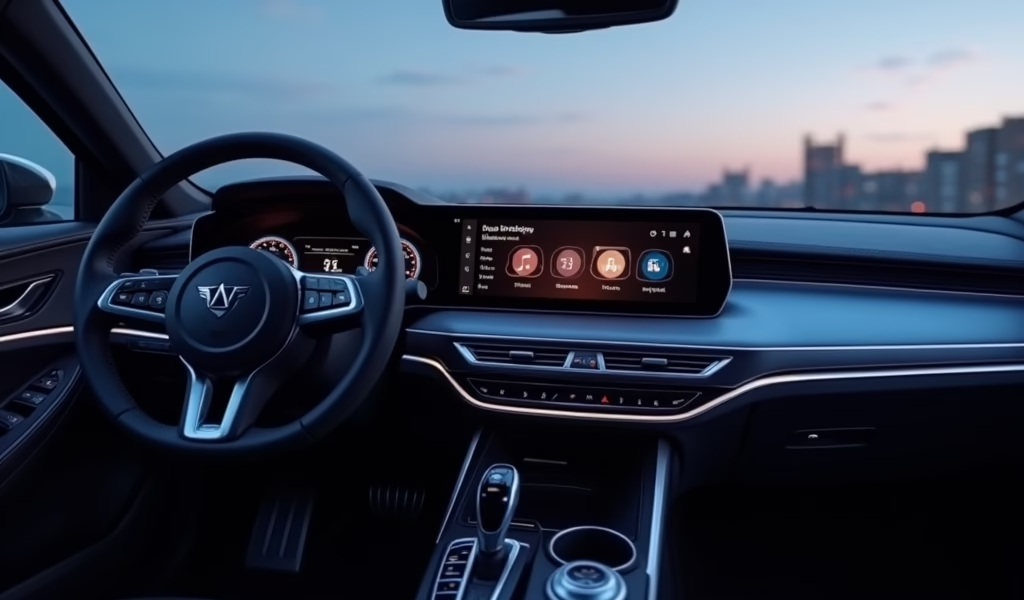
Siri is your co-pilot when using CarPlay, but many drivers barely scratch the surface of what voice commands can do. Think of Siri as that experienced navigator who knows all the shortcuts—if only you’d ask. To activate Siri, either press and hold the voice command button on your steering wheel or simply say “Hey Siri” if you’ve enabled this feature.
Here’s where things get interesting. Beyond basic commands like “Call Mom” or “Play Beatles,” try these advanced voice commands that’ll make your commute significantly smoother:
- “Send a WhatsApp message to [contact] saying I’m running 15 minutes late”
- “Find gas stations along my route”
- “What’s the weather like at my destination?”
- “Add milk to my shopping list”
- “Play the latest episode of [podcast name]”
The real magic happens when you chain commands together. For instance, “Hey Siri, find the nearest coffee shop, then send my ETA to my wife” accomplishes two tasks with one breath. It’s like having an efficiency expert redesign your communication workflow.
However, ambient noise can sometimes confuse Siri—similar to trying to have a conversation in a crowded room. If you’re having trouble, try speaking more clearly and slightly louder than normal conversation, or reduce background noise by closing windows or lowering your music volume. Some vehicles also have a dedicated microphone for voice commands that works better than others, so positioning yourself properly (typically looking forward rather than at the screen) can improve recognition accuracy.
According to research from the Insurance Institute for Highway Safety, drivers who use voice commands effectively spend less time with their eyes off the road compared to those who manually interact with their infotainment systems—a difference that could literally be life-saving.
Pro Tip 2: Optimizing Your CarPlay Apps for Maximum Efficiency
Your CarPlay experience is only as good as the apps you’ve installed—much like how a mechanic’s toolkit determines what jobs they can tackle effectively. While Apple pre-loads essentials like Phone, Messages, and Maps, the real customization begins with third-party apps. But not all apps are created equal in the CarPlay ecosystem.
First, audit your CarPlay app lineup. Which apps do you actually use while driving? For navigation, while Apple Maps comes standard, many drivers prefer alternatives like Waze for its crowd-sourced traffic alerts or Google Maps for its familiar interface. For music, beyond Apple Music, consider Spotify, Pandora, or Amazon Music. And don’t overlook specialized apps like Audible for audiobooks or podcast players like Overcast that offer voice-optimized interfaces.
Here’s how to optimize your CarPlay app selection:
- Rearrange apps by frequency of use (customize this in your iPhone’s Settings > General > CarPlay > [Your Car Name])
- Remove rarely used apps from your CarPlay interface (they’ll still be on your phone)
- Group similar apps together for easier navigation while driving
- Ensure your most important apps are updated to their latest versions for best compatibility
A pro move is to set up app shortcuts based on your routine. For instance, if you always check traffic before heading home from work, create a Siri Shortcut that opens your preferred navigation app and inputs your home address with a simple voice command like “Hey Siri, start my commute.”
Remember that just because an app works on your phone doesn’t mean it’s optimized for CarPlay. Some apps have limited functionality, while others have specially designed interfaces for driving. For music apps particularly, take advantage of features like offline playlists to avoid streaming issues in areas with poor reception—similar to how you’d pack emergency supplies for a long road trip.
Pro Tip 3: Troubleshooting Common Connection Issues
Even the most reliable vehicles occasionally need a tune-up, and your CarPlay connection is no different. When your iPhone and car seem to be speaking different languages, don’t panic—most connection issues have straightforward fixes that don’t require an engineering degree.
The most common CarPlay headache? Inconsistent connections. One day it works flawlessly; the next, your car acts like it’s never met your iPhone before. This digital amnesia often stems from a few predictable sources.
Let’s walk through a systematic troubleshooting approach:
- Check your cable: For wired CarPlay, a frayed or low-quality Lightning cable is often the culprit. Like an old spark plug wire, it may work intermittently before failing completely. Invest in an Apple-certified cable for best results.
- Restart your devices: Sometimes both your iPhone and your car’s infotainment system need a refresh. Turn your car off, restart your phone (hold power and volume buttons), then try again.
- Check CarPlay settings: Ensure CarPlay isn’t restricted while your phone is locked (Settings > Screen Time > Content & Privacy Restrictions > Allowed Apps).
- Update your software: Both iOS on your iPhone and your vehicle’s firmware should be current—outdated software is like running old oil in a modern engine.
- Reset your connections: Go to Settings > General > CarPlay and forget your car, then set up the connection again from scratch.
For wireless CarPlay users, interference issues can be particularly frustrating. Think of wireless CarPlay like a conversation in a crowded room—too many signals can create confusion. Try turning off other Bluetooth devices temporarily, or if you’re in a high-interference area (like downtown in a major city), switching to a wired connection might be your best bet.
One often overlooked factor? Temperature extremes. Just as batteries struggle in freezing temperatures, your phone might perform poorly when very cold or overheated. If you’ve left your phone in a hot car or it’s been exposed to extreme cold, give it time to return to a normal operating temperature before troubleshooting further.
If all else fails, your vehicle’s infotainment system might need a full reset. Consult your owner’s manual for the procedure—typically holding down specific buttons or navigating through settings menus. Think of it as the automotive equivalent of “turn it off and back on again.”
Pro Tip 4: Customizing Your CarPlay Display
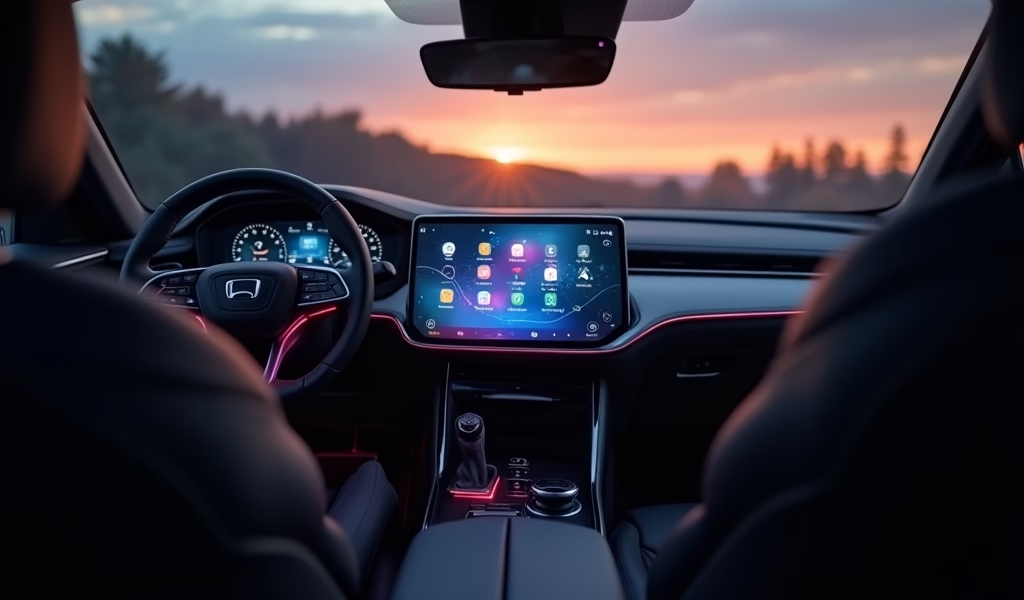
Your vehicle’s dashboard has evolved from simple gauges to a digital command center, and personalizing your CarPlay display is like choosing the perfect layout for your workspace. The right setup can make the difference between fumbling through menus and having crucial information at your fingertips.
With iOS 13 and later, Apple introduced a game-changing Dashboard view that displays multiple apps simultaneously. It’s like moving from a single-bay garage to a professional mechanic’s multi-lift workshop—suddenly, you’ve got space to manage multiple tasks efficiently.
Here’s how to make your CarPlay display work harder for you:
- Customize your home screen: Arrange apps by frequency of use via Settings > General > CarPlay > Your Car Name. Drag the most-used apps to the first screen.
- Use Dashboard view effectively: This split-screen view can show navigation, music, and Siri suggestions simultaneously. Toggle between Dashboard and Home screen by tapping the appropriate icon.
- Choose your wallpaper: With newer iOS versions, you can select a wallpaper that matches your style (Settings > General > CarPlay).
- Set display preferences: Some vehicles allow you to adjust brightness, contrast, and even switch between day/night modes automatically.
Here’s something many drivers miss: you can customize which notification types appear on your CarPlay display. Just like a mechanic selects which warning lights deserve immediate attention, you can filter which alerts interrupt your driving experience. Navigate to Settings > Notifications on your iPhone and adjust settings for each app individually.
For navigation enthusiasts, consider whether you prefer the standard map view or the more detailed turn-by-turn instructions with lane guidance. Each has its advantages, similar to choosing between a bird’s-eye view of an engine bay versus a detailed component diagram. You can toggle between these views within most navigation apps with a simple tap.
Remember that your vehicle may offer additional display customization through its own settings menu. Some manufacturers provide options for CarPlay screen size, position, or integration with the vehicle’s native features. Consult your owner’s manual or explore the settings menu when safely parked to discover these vehicle-specific options.
Pro Tip 5: Leveraging Advanced CarPlay Features
Beyond the basics lies a world of advanced CarPlay features that many drivers never discover—hidden gems that can transform your driving experience from good to exceptional. Like finding that perfect tool that makes a complex repair suddenly manageable, these advanced features solve problems you might not have realized you had.
Do Not Disturb While Driving is perhaps the most underutilized safety feature. When enabled, it silences incoming notifications and can automatically reply to texts letting people know you’re driving. Think of it as putting up a “mechanic at work” sign—it signals that your attention is focused on an important task. You can customize auto-replies and allow certain contacts to break through in emergencies.
Calendar integration is another powerhouse feature. With recent iOS updates, your CarPlay can display upcoming appointments and even provide navigation to event locations with a single tap. Imagine having a personal assistant who not only reminds you of meetings but plots the fastest route there.
For the audiophiles among us, take advantage of these sound optimization features:
- EQ Settings: Many music apps allow you to adjust equalization settings specifically for your car’s acoustic environment.
- Spatial Audio: Newer vehicles with compatible sound systems can utilize Apple Music’s Spatial Audio for an immersive listening experience.
- Audio Routing: Control which car speakers are active when getting directions while music is playing.
For families sharing vehicles, CarPlay’s multi-user support is invaluable. When different iPhones connect, CarPlay adapts to each user’s preferences automatically. It’s like having your mechanic’s toolbox automatically rearrange itself to your preferences when you pick it up.
Siri Shortcuts integration takes efficiency to another level. You can create custom commands that perform multiple actions simultaneously. For example, a single “Start road trip” command could open your navigation to a preset destination, start a specific playlist, send your ETA to family, and adjust your smart home thermostats—all with one phrase.
Apple regularly updates CarPlay with new features, so staying current with iOS updates ensures you’ll have access to the latest improvements. The relationship between your phone and car is evolving rapidly—much like how modern vehicles with their computerized systems barely resemble their mechanical ancestors from just a few decades ago.
Conclusion
Apple CarPlay functionality has transformed our vehicles from mere transportation into extensions of our digital lives. Like a well-maintained engine that quietly performs complex operations without drawing attention to itself, CarPlay works best when it becomes nearly invisible—enhancing your drive without demanding your focus.
We’ve explored five professional tips that elevate your CarPlay experience: mastering voice commands for truly hands-free operation, optimizing your app selection for efficiency, troubleshooting connection issues before they become roadblocks, personalizing your display for intuitive access, and leveraging advanced features that many drivers overlook.
Remember that technology in vehicles, like the vehicles themselves, requires occasional maintenance and updates to perform at its best. Taking a few minutes to optimize your CarPlay setup can save countless moments of frustration and distraction on the road—which is ultimately what this technology was designed for.
The road ahead for CarPlay looks promising, with Apple’s announced next-generation version promising deeper integration with vehicle systems and more customization options. Whether you’re a daily commuter, weekend road-tripper, or somewhere in between, these CarPlay optimization strategies will help ensure your digital co-pilot is always ready for the journey.
What CarPlay features have improved your driving experience the most? Consider trying one new feature or customization from this guide during your next drive. Sometimes the smallest adjustments yield the most significant improvements—in both cars and technology.
Frequently Asked Questions
What vehicles are compatible with Apple CarPlay?
Over 600 car models support CarPlay, from most major manufacturers including Toyota, Honda, Ford, and BMW. Check Apple’s website or your vehicle’s manual to confirm compatibility for your specific make and model.
Can I use CarPlay wirelessly, or do I need a cable?
Both options exist, though wireless CarPlay is available in fewer vehicles. Wired connections use a Lightning-to-USB cable, while wireless CarPlay works via Bluetooth and Wi-Fi in compatible vehicles.
Will CarPlay drain my phone battery quickly?
Wired CarPlay actually charges your phone while in use. Wireless CarPlay does consume more battery, but most vehicles with wireless CarPlay also offer wireless charging pads.
Can I use Google Maps instead of Apple Maps with CarPlay?
Yes, Google Maps, Waze, and many other navigation apps are fully compatible with CarPlay. Simply install them on your iPhone and they’ll appear in your CarPlay interface.
Does CarPlay replace my car’s built-in infotainment system?
CarPlay temporarily overlays your car’s native system while connected but doesn’t permanently replace it. You can typically switch between CarPlay and your vehicle’s system with a dedicated button or menu option.